Snapshots & Snapshot Schedule
This guide explains how to create, view, delete, and schedule snapshots for subvolumes. Snapshots are point-in-time backups and are essential for data protection and recovery.
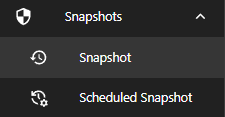
Navigation
- Path:
Snapshots > Snapshot - You can also access
Scheduled Snapshotfrom the same section.
Manual Snapshots
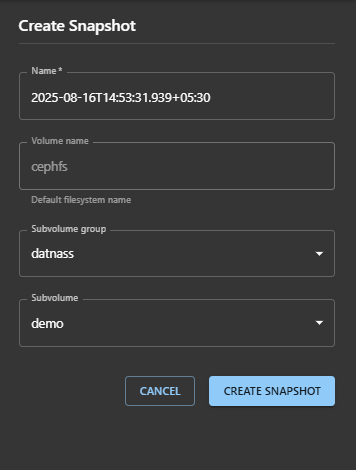
Create Snapshot
To create a snapshot manually:
- Navigate to Snapshots > Snapshot
- Click Create Snapshot
- Fill in the form:
| Field | Description |
|---|---|
| Name | Auto-filled with timestamp, can be customized |
| Volume name | Select the volume (e.g., cephfs) |
| Subvolume group | Select the group (e.g., datnass) |
| Subvolume | Select the subvolume (e.g., demo) |
- Click “Create Snapshot”
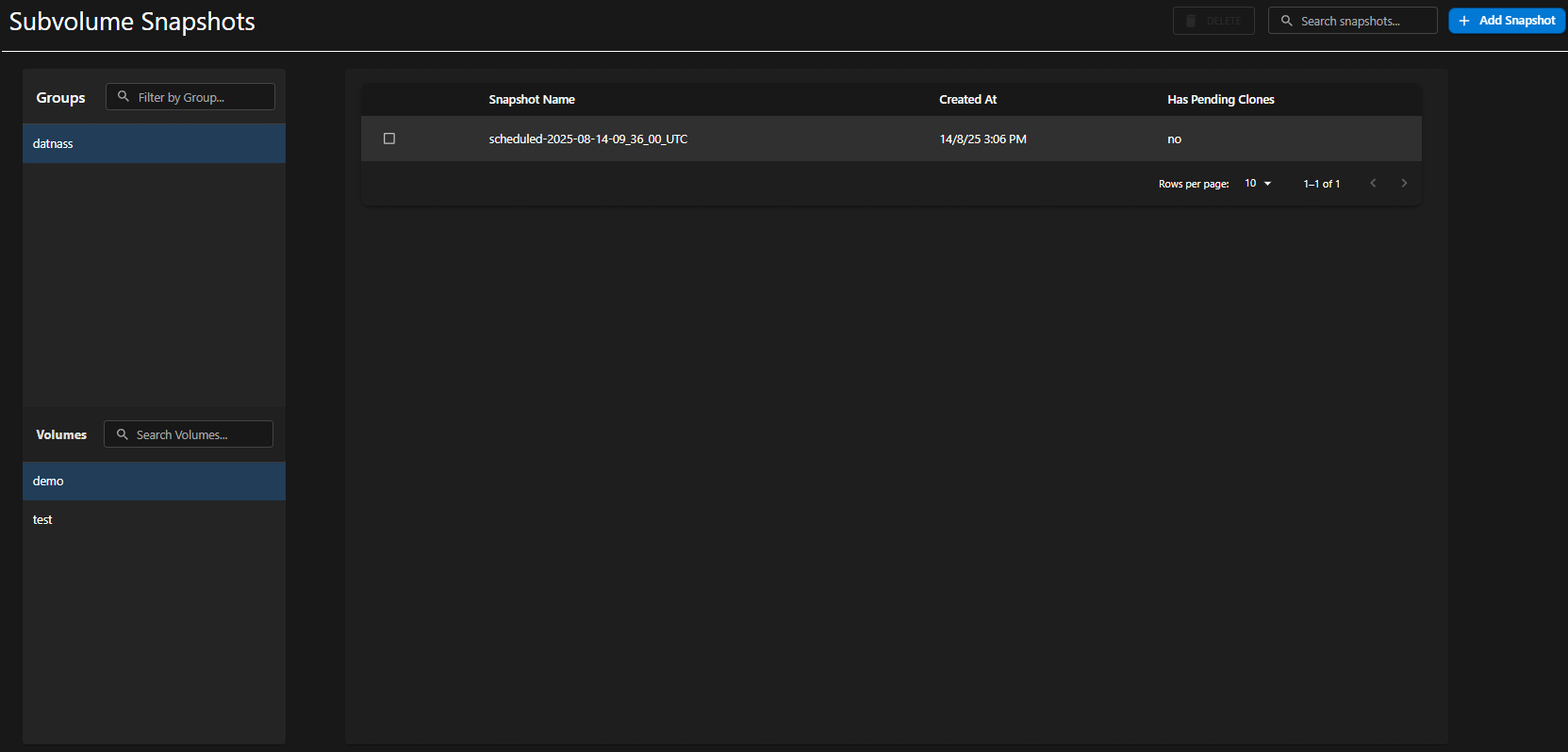
Snapshot List View
From the Subvolume Snapshots dashboard:
| Column | Description |
|---|---|
| Snapshot name | Name of the snapshot |
| Created at | Timestamp when snapshot was created |
| Pending clones | Status of any pending clone operations |
Snapshots are grouped by Subvolume Group and Subvolume in the left pane.
Removing Snapshots
To remove a snapshot:
- Click the delete icon next to the snapshot
- A confirmation dialog appears:
- “Are you sure that you want to remove ‘snapshot-name’?”
- Click “REMOVE SNAPSHOT” to confirm
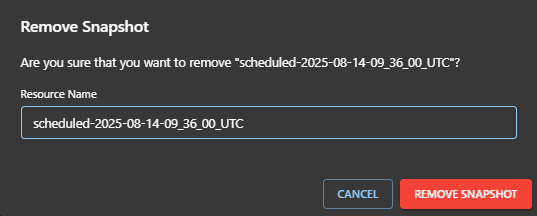
Warning: Snapshot deletion is permanent and cannot be undone.
Scheduled Snapshots
Scheduled snapshots allow automatic creation of snapshots at defined intervals.
Accessing Scheduled Snapshots
Go to Snapshots → Scheduled Snapshot.

Create a Snapshot Schedule
- Click the Add Schedule button.
- Fill in the following:
| Field | Description |
|---|---|
| Directory | Full subvolume path (auto-filled) |
| Start Date | When to begin the schedule |
| Start Time (UTC) | Time of first snapshot |
| Schedule | Choose interval (e.g., 1 Hourly, 1 Daily) |
| Retention Policy | (Optional) How long snapshots should be retained (e.g., 1 Hour) |
- Click Create Snapshot Schedule.
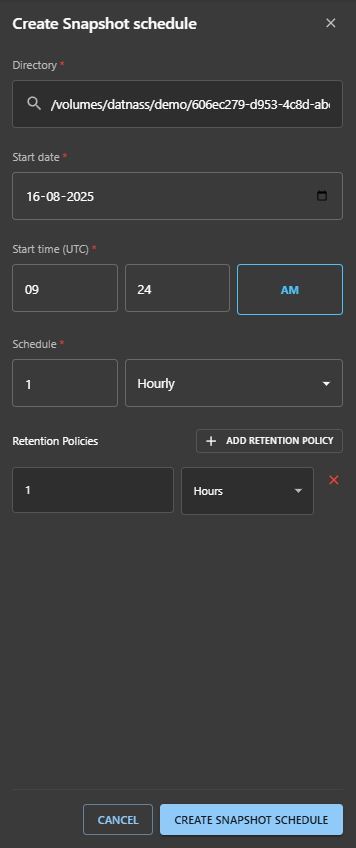
The system will start creating snapshots automatically as per the defined interval.
Edit an Existing Schedule
- Click Edit next to a listed schedule.
- You can change:
- Start time
- Retention policies
- Schedule interval
- Click Update Schedule.
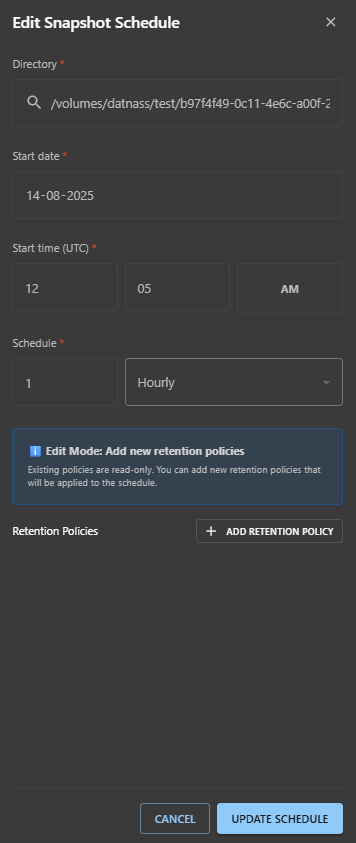
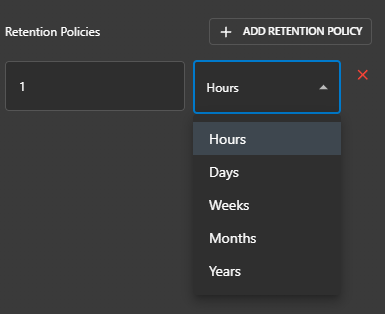
You can only add new retention policies. Existing ones are read-only.
Schedule Interval Options
| Interval | Description |
|---|---|
1 Hourly | Creates a snapshot every hour |
1 Daily | Creates a snapshot once per day |
1 Weekly | Creates a snapshot once per week |
1 Monthly | Creates a snapshot once per month |
Retention Policy Options
Retention policies determine how long snapshots are kept before automatic deletion:
| Policy | Description |
|---|---|
1 Hour | Keep snapshots for 1 hour |
1 Day | Keep snapshots for 1 day |
1 Week | Keep snapshots for 1 week |
1 Month | Keep snapshots for 1 month |
Best Practices
- Regular Snapshots: Create snapshots before making significant changes to your data.
- Schedule Automation: Use scheduled snapshots for critical subvolumes to ensure regular backups.
- Retention Management: Set appropriate retention policies to balance storage usage and data protection needs.
- Test Restores: Periodically verify that snapshots can be restored successfully.