Share Page
This guide explains how to manage shared folders using the Share section of the Web Console. It includes instructions for creating, editing, and deleting SMB shares, as well as configuring access permissions using ACL and Unix permissions.
Share Page Overview
The Share page lists all existing SMB (Windows) shares.

Columns
| Column | Description |
|---|---|
| Name | Name of the share |
| Path | Filesystem path to the dataset |
| Description | Optional description of the share |
| Enabled | Toggle to enable/disable a share |
Actions per Share
| Action | Description |
|---|---|
| 🛡️ Permissions | Posix permissions and Unix permissions |
| ✏️ Edit | Modify share settings |
| 🗑️ Delete | Remove the share (confirmation required) |
Add a New Share
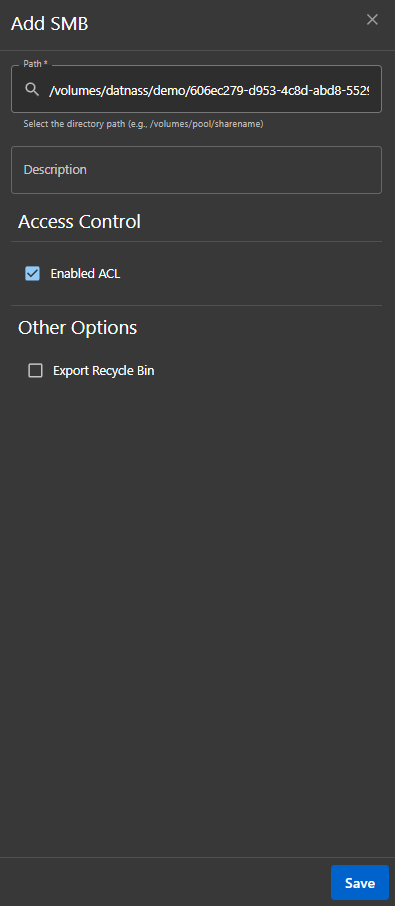
Click “Add Share” to create a new SMB share.
Required Fields
| Field | Description |
|---|---|
| Path | Select the dataset directory (e.g. /volumes/datnass/test) |
| Description | (Optional) Describe the purpose of the share |
Access Control
- ✅ Enabled ACL: Enables advanced Access Control Lists for granular permission management.
Other Options
- ☑️ Export Recycle Bin: (Optional) Creates a hidden recycle folder in the share to store deleted files.
Click Save to create the share.
Edit an Existing Share
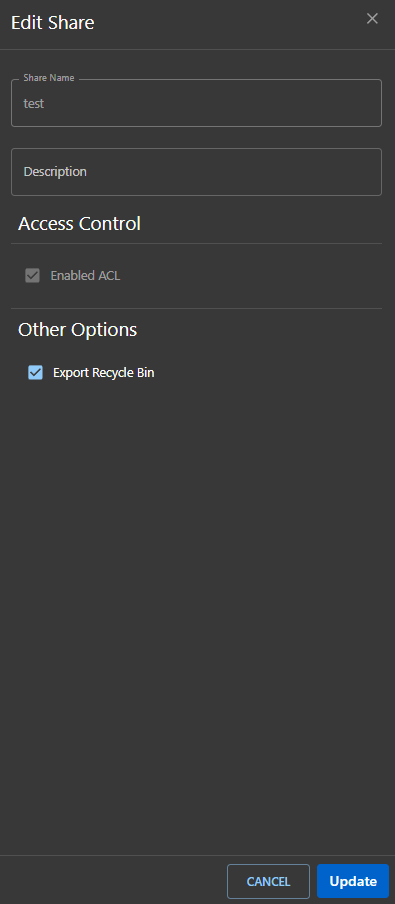
Click the ✏️ Edit icon next to the share to change:
- Share Name
- Description
- Toggle:
- ✅ Enabled ACL (disable)
- ☑️ Export Recycle Bin
Click Update to save changes.
Delete a Share
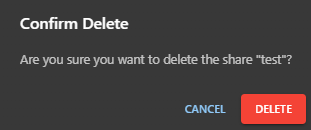
Click the 🗑️ Delete icon. A confirmation message appears before the share is removed.
Manage Permissions
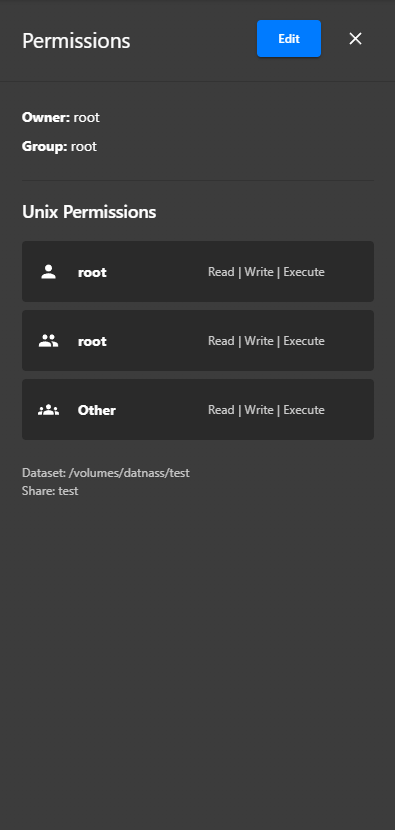
Click the 🛡️ Permissions icon to configure either Posix permissions or Unix permissions.
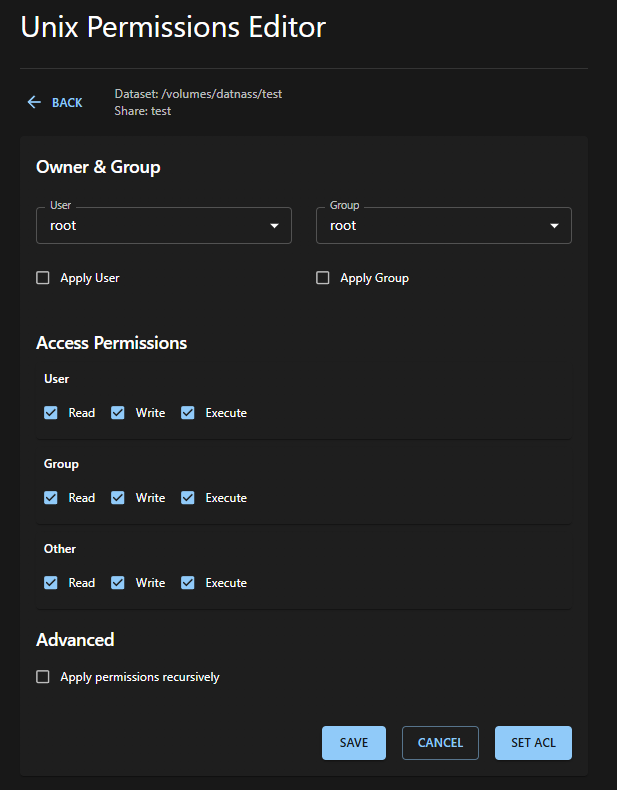
Unix Permissions Editor (Basic Permissions)
Set standard permissions for:
| Target | Description |
|---|---|
| Owner (User) | The user who owns the file/folder |
| Group | Users in the assigned group |
| Other | All other users |
Assign permissions:
Read,Write,Execute
Additional options:
- Change ownership (optional)
- Apply permissions recursively
- Option to Set ACL from here directly
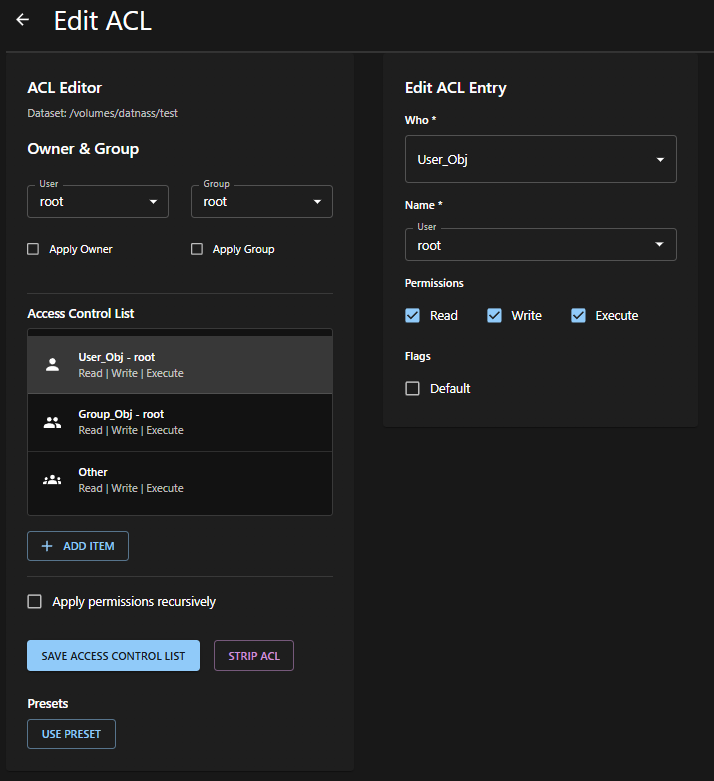
ACL Editor (Posix Permissions)
Set permissions for:
- User Owner
- Group Owner
- Other (everyone else)
You can:
- Add individual users or groups
- Assign
Read,Write,Executepermissions - Apply changes recursively
- Save or strip the current ACL
Ownership Settings
| Field | Description |
|---|---|
| User | Select the user who will own the file or directory |
| Group | Select the group that will own the file or directory |
| Apply User | Check this box to apply the selected user as the owner |
| Apply Group | Check this box to apply the selected group as the owner |
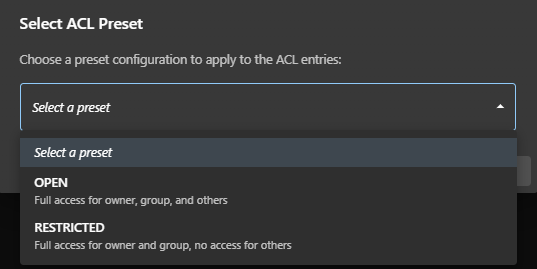
Presets Available
| Preset | Description |
|---|---|
OPEN | Full access for all users |
RESTRICTED | Full access for owner and group, none for others |
View Current Permissions
You can view current Owner, Group, and Access Levels (Read | Write | Execute) for:
- User
- Group
- Others