Group Page
The Group Page allows administrators to create, edit, and manage user groups for organizing permissions and access controls.
Group List Overview
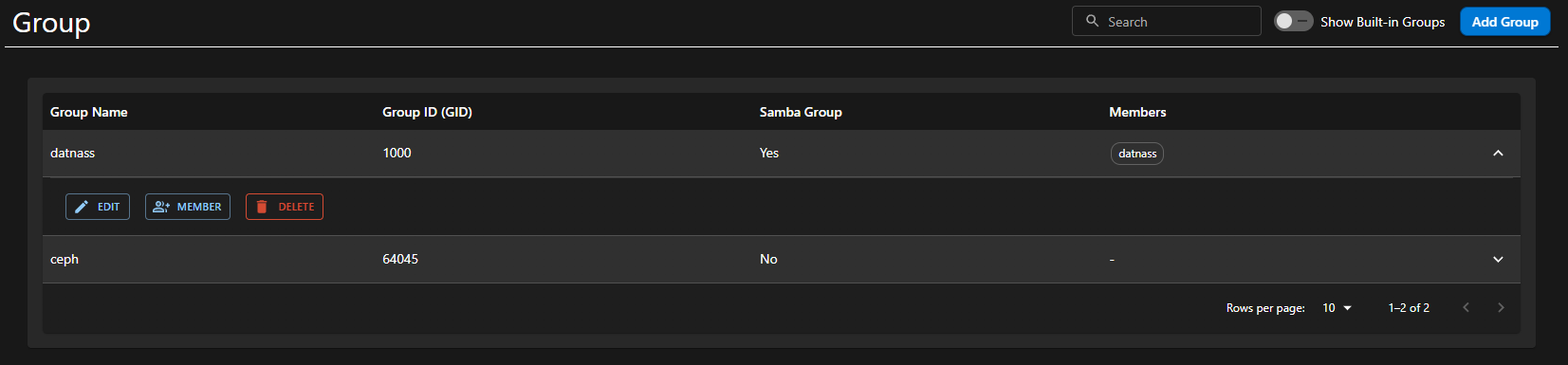
The group list displays all created groups with:
| Column | Description |
|---|---|
| Group Name | Name of the group |
| Group ID (GID) | Unique group identifier |
| Samba Group status | Whether Samba authentication is enabled |
| Current Members | Users in the group |
- Built-in groups can be hidden or shown using the toggle.
- Use the Search bar to quickly locate a group.
Add New Group
Steps
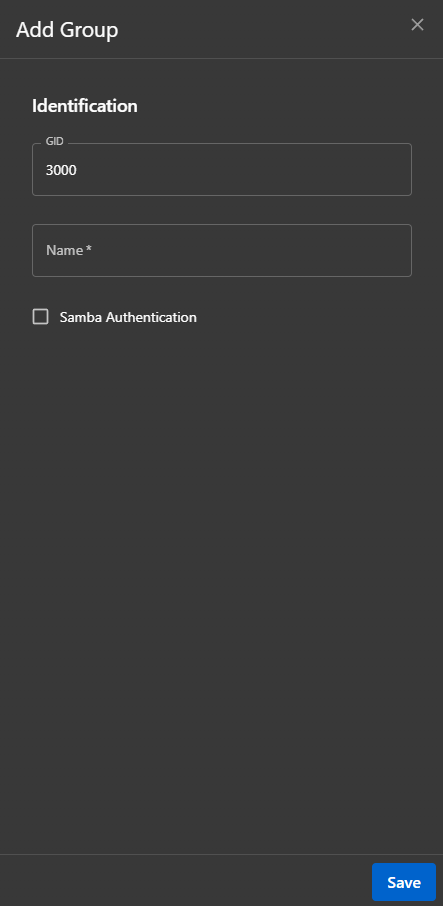
- Click Add Group in the top-right.
- Enter the following:
- GID (Group ID)
- Name of the group
- (Optional) Enable Samba Authentication if the group is to be used for Samba sharing.
- Click Save to create the group.
Edit Group
Steps
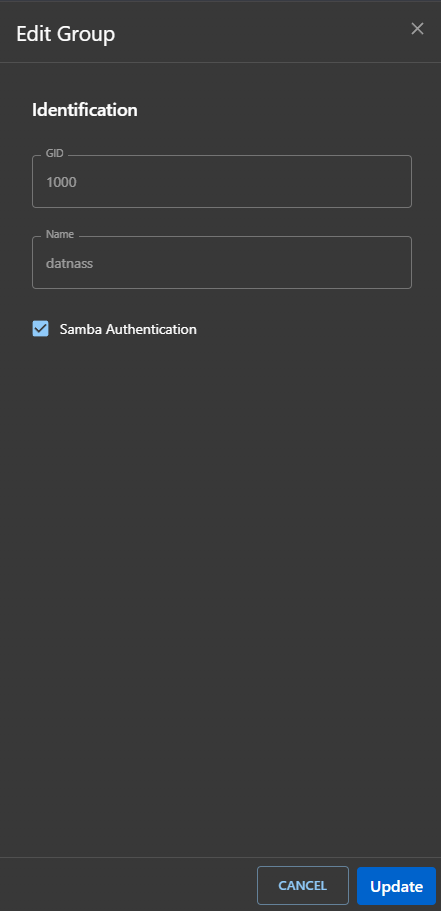
- Click the dropdown (▾) on the group row and choose Edit.
- Modify:
- Group name
- Samba Authentication setting
- Click Update to save changes.
Manage Group Members
Steps
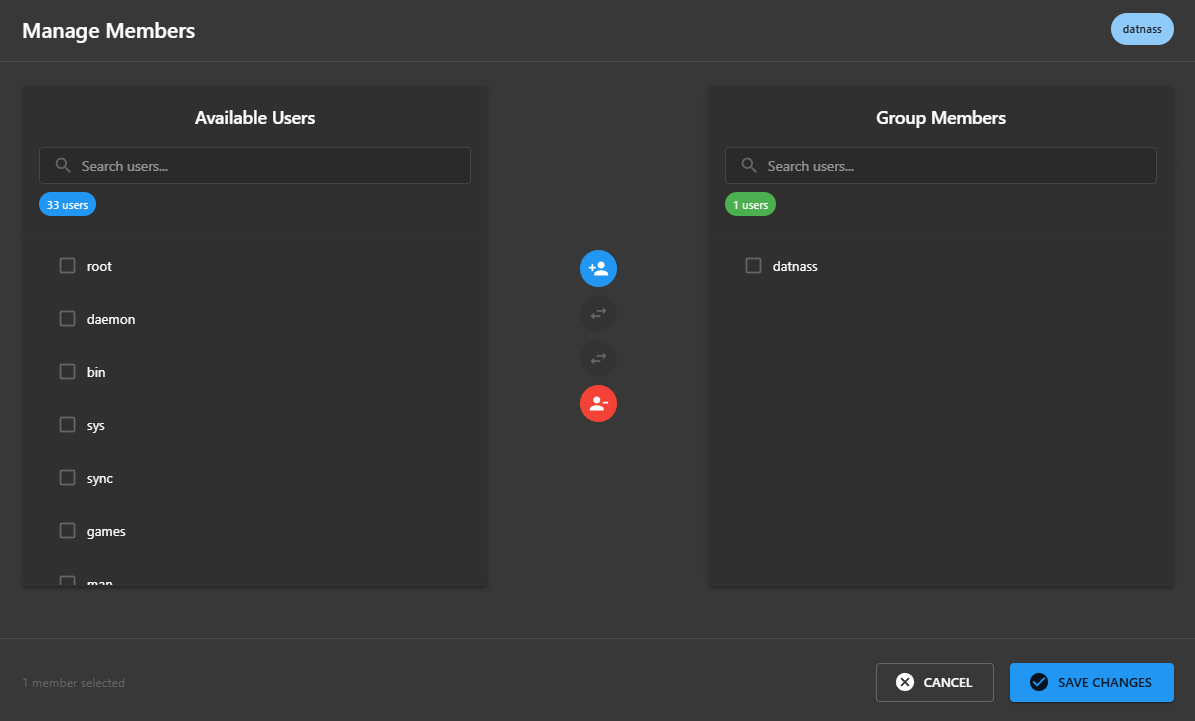
- Click the dropdown (▾) on the group row and select Manage Members.
- Available Users are on the left. Current group members are on the right.
- To add or remove members:
- Use the arrow buttons between the columns.
- Add (+), Remove (–)
- After managing users, click Save Changes.
Delete Group
Steps
- Click the dropdown (▾) on the group row and select Delete.
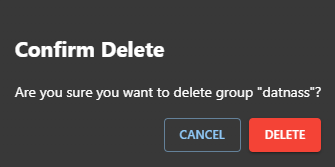
- A confirmation popup appears.
- Click Delete to remove the group, or Cancel to abort.
Warning: Deleting a group is permanent and cannot be undone.