File Navigation
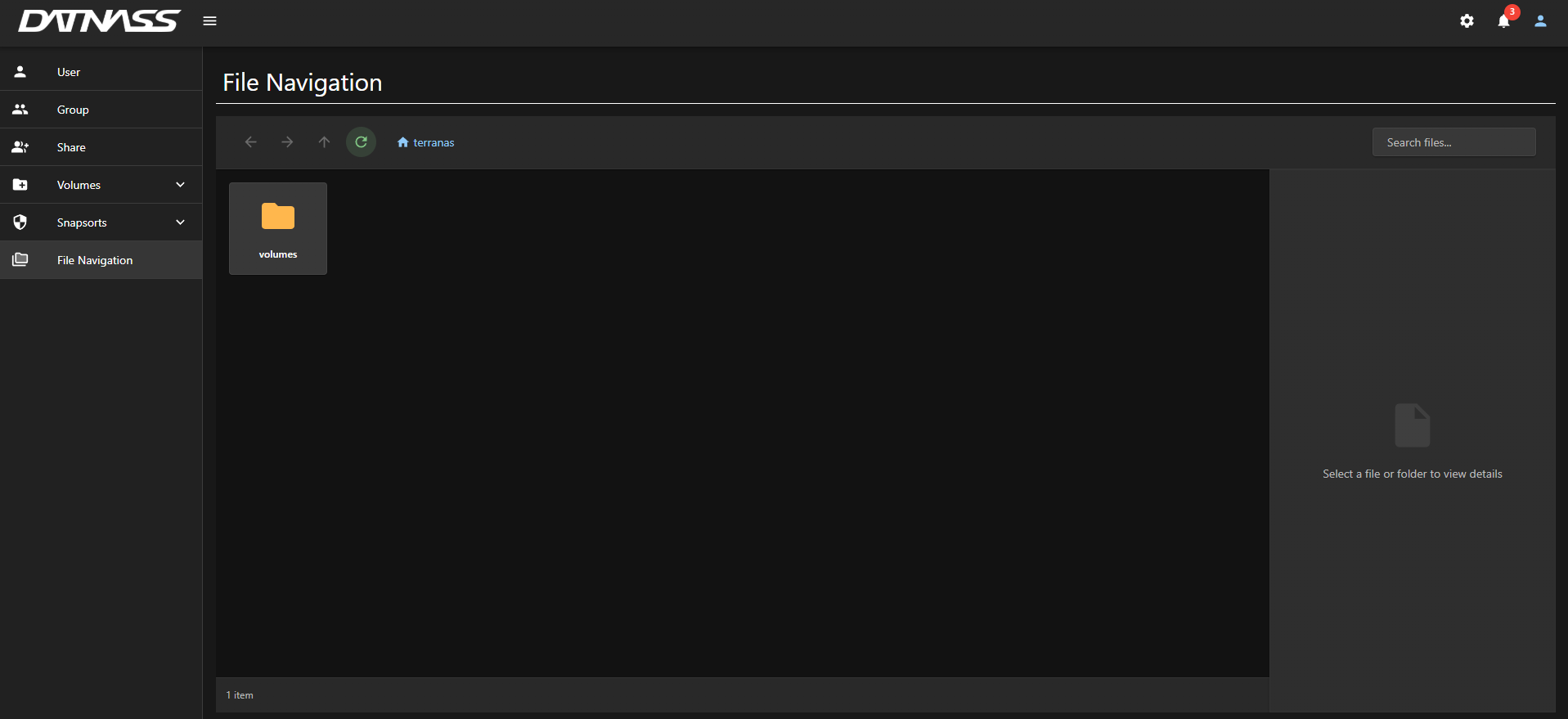
Welcome to the File Navigation feature of DATNASS! This handy tool helps you browse through your volumes and subvolumes, inspect files and folders, and see all the essential info you need at a glance.
Getting Started
Access File Navigation
- From the left menu, click on File Navigation
- The main window will show the contents of your starting directory, usually the
volumesfolder.
Browsing Files & Folders
- Click on any folder icon to open and explore its contents.
Navigation Buttons
Use the navigation buttons at the top-left:
| Button | Action |
|---|---|
| ⬅️ Back | Go to the previous folder |
| ➡️ Forward | Move forward if you went back before |
| ⬆️ Up | Go up one folder level |
| 🔄 Refresh | Reload the current folder contents |
Breadcrumb Path
The breadcrumb path (e.g., terranas > volumes > datnass > demo) shows your current location and helps jump to any parent folder easily.
Searching Files
Use the Search files… box (top-right corner) to quickly find files or folders within the current directory.

Viewing File/Folder Details
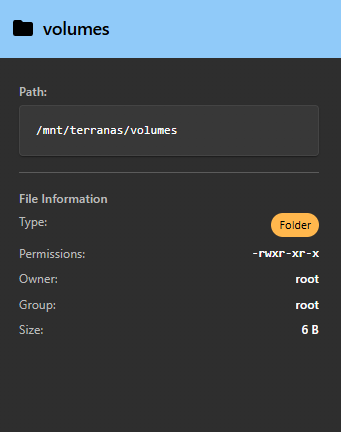
Click on any file or folder to see its details on the right side panel:
| Detail | Description |
|---|---|
| 📁 Path | Full path to the file/folder |
| 🗃️ Type | File or Folder |
| 🔑 Permissions | Unix-style permission flags (e.g., rwxr-xr-x) |
| 👤 Owner | Username of the file/folder owner |
| 👥 Group | Group that owns the file/folder |
| 📏 Size | Size of the file or folder contents |
Examples
Folder Info Example
Selecting the volumes folder shows:
| Property | Value |
|---|---|
| Path | /mnt/terranas/volumes |
| Type | Folder |
| Permissions | rwxr-xr-x |
| Owner | root |
| Group | root |
| Size | 6 B |
File Info Example
Selecting a file like test.txt inside a subvolume shows:
| Property | Value |
|---|---|
| Path | /mnt/terranas/volumes/datnass/demo/606ec279-d953-4c8d-abd8-55292351ce78/test.txt |
| Type | File |
| Permissions | -rwxrwxrwx |
| Owner | dork |
| Group | dork |
| Size | 0 B |
Tips & Tricks
Refresh Regularly: Always refresh the folder if you think files have been changed or added outside the interface.
Use Breadcrumbs: Use the breadcrumb path to quickly jump back to parent directories.
Monitor Storage: Monitor file sizes and ownership to manage storage and security efficiently.
Snapshot Caution: Be careful navigating subvolume snapshots — changes here might affect backup or system states.
Understanding Permissions
Unix-style permissions are displayed in the format: rwxrwxrwx
| Position | Meaning |
|---|---|
| Characters 1-3 | Owner permissions |
| Characters 4-6 | Group permissions |
| Characters 7-9 | Other users permissions |
| Symbol | Meaning |
|---|---|
r | Read permission |
w | Write permission |
x | Execute permission |
- | Permission not granted |
Example
rwxr-xr-- means:
- Owner: read, write, execute
- Group: read, execute
- Others: read only